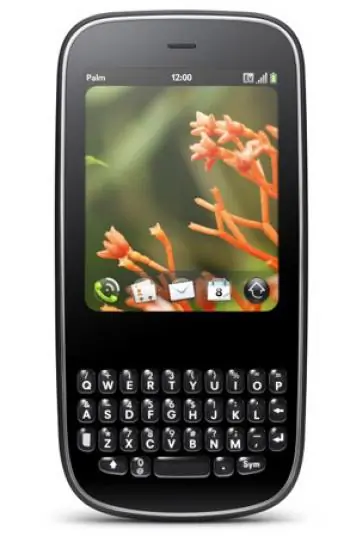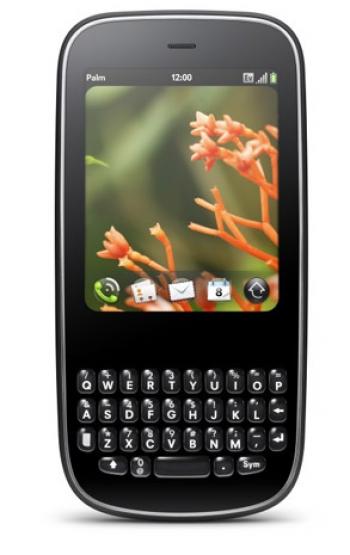

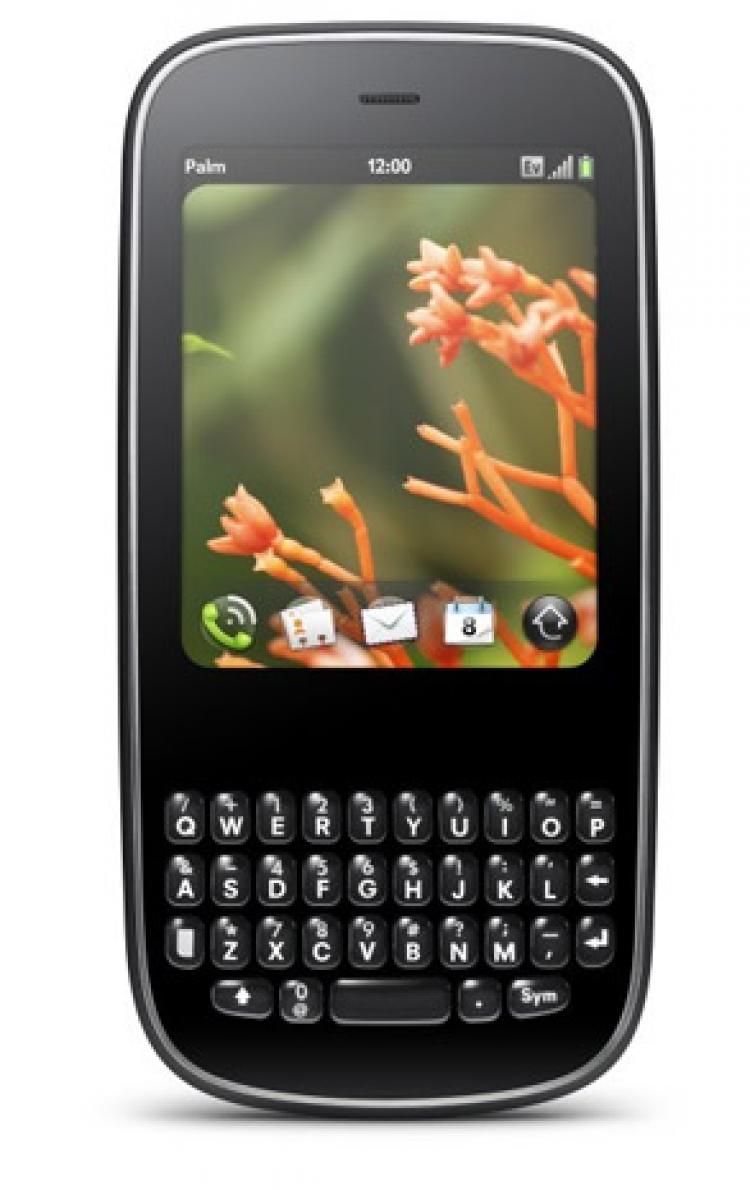
The device is small, sleek and very comfortable in the hand. The slate-style phone has a unique case and a one-piece, form fitting silicone backing that is cool to the touch and feels very secure.
The Palm Pixi is also noticeably thinner than most other smartphones available—measuring just .427 inches thick, it is .079 inches thinner than iPhone 3Gs.
It has a full QWERTY keyboard that is thoughtfully designed. It offers more symbols, like the @ symbol and the period, placed where they are easy to reach and use. The overall interface is clean and easy to understand—it contains a screen, keyboard, power button, full-sized earphone jack for music, sound/vibrate switch, and volume control.
The Pixi features a 2 mega-pixel camera with flash that takes very good pictures. The device makes it easy to post high quality photos to your Facebook, Twitter, or MySpace blogs. The screen itself is a 300×400 multi-touch display that measures 2.63 inches across.
Just below the screen is an area for gestures. Gestures give me a nostalgic feeling from the old Palm days where graffiti was the input method for Palm devices. There are just a few you have to remember and it removes the need for a stylus. The screen is also multi-touch—a great new feature seen mostly on the iPhone and iPod touch. I can use finger gestures to zoom-in or out, flip between apps, or select input fields on a Web page.
Turning it on and activating the device is also simple and straight forward, and the 18-bit color display is very impressive. The interface is also easy to use.
Combining Contacts
The Pixi WebOS is quite an interesting application itself. As I was going through the set up process, I was asked to input my e-mail information (Gmail from Google) as well as my social networking habits. When I added my Facebook, something interesting happened. The Pixi combined all the contacts in my Gmail that were also in my Facebook. It also connected and synchronized with my GCalendar. For veteran smartphone users, this is an amazing upgrade. It is no longer necessary to employ a cable to sync to our MS Outlook, or buy some third-party software to access our Gmail and other Google apps. The entire setup process is extremely smooth.
Another first is Pixi’s ability to backup data over the air. Not just contacts and schedule, but applications and other stored information as well. This feature alone makes the phone an invaluable tool for any business person, especially those in sales. I don’t even have to worry about making the entries as the back ups are regularly accomplished by the operating system itself.
Simply use an upward motion gesture to unlock the phone, and an uncluttered workspace greets you when you activate the screen. A small dock at the bottom of the screen holds your favored applications.
Navigating Applications
On my Pixi, I see phone, e-mail and calendar applications, and an application screen launcher, which not only accesses all the apps on the device, but also utilizes gestures as I move from one page to the next in the apps menu. The top of the screen displays the time, battery, and antenna information. I particularly like the cleanliness of the workspace, as there is plenty of room to enjoy a favorite decorative wallpaper in the background.
 Friends Read Free
Copy
Facebook
Tweet
Friends Read Free
Copy
Facebook
Tweet